
Users and roles: who can do what in Strybai
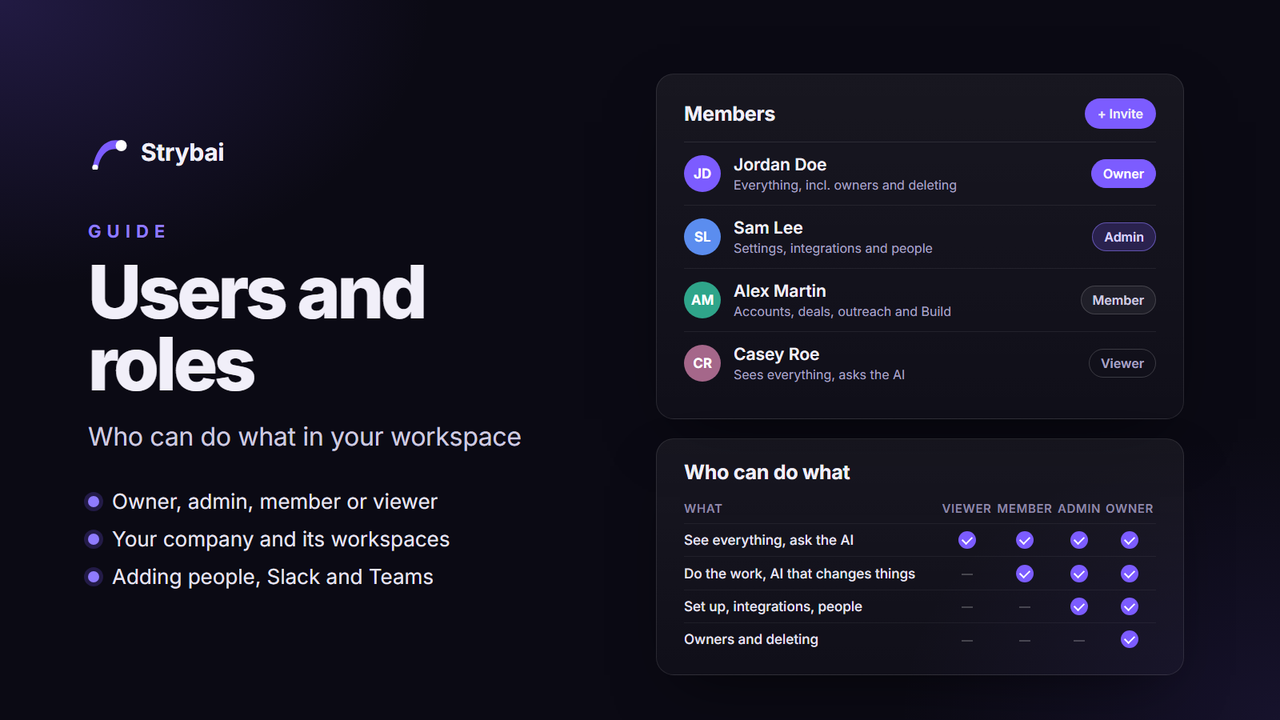
Everyone in a Strybai workspace has one role. The role decides what they can see and change. Most of your team will be members: they do the day-to-day work. A few people set the workspace up as admins, and at least one person is the owner. People who only need to look get viewer access.
The four roles
- Owner: everything an admin can do, plus making someone else an owner and deleting the workspace. Every workspace always has at least one owner.
- Admin: sets the workspace up (settings, sending, integrations, the pipeline) and manages the people in it.
- Member: does the work: accounts, deals, outreach, the inbox, plans and tasks in Build, and Knowledge entries.
- Viewer: sees everything in the workspace but can't change anything. Good for a manager, an advisor or a client contact who only needs to follow along.
Who can do what
| What you can do | Viewer | Member | Admin | Owner |
|---|---|---|---|---|
| See accounts, deals, the inbox, Build and Knowledge | ✅ | ✅ | ✅ | ✅ |
| Ask the AI assistant a question | ✅ | ✅ | ✅ | ✅ |
| Your own profile, two-step sign-in, notifications and calendar connection | ✅ | ✅ | ✅ | ✅ |
| Add and edit accounts, contacts, deals, notes, promises and tasks | — | ✅ | ✅ | ✅ |
| Run outreach sequences and handle the inbox | — | ✅ | ✅ | ✅ |
| Write and publish Knowledge entries | — | ✅ | ✅ | ✅ |
| AI that creates or changes things: logging with AI, Plan with AI, Discover with AI, AI drafts, website summaries | — | ✅ | ✅ | ✅ |
| Add your meetings to accounts (calendar sync) | — | ✅ | ✅ | ✅ |
| Set up the deal pipeline and custom fields | — | — | ✅ | ✅ |
| Workspace settings: name, look, sending, languages and signature | — | — | ✅ | ✅ |
| Connect integrations: GitHub, Jira, Slack, Teams, Clockify, Toggl, API keys, webhooks and Knowledge channels | — | — | ✅ | ✅ |
| Invite people, change their role and remove them (except owners) | — | — | ✅ | ✅ |
| Make someone an owner, or change or remove an owner | — | — | — | ✅ |
| Delete the workspace | — | — | — | ✅ |
Strybai checks the role for every action, wherever it comes from. If something isn't allowed for your role, Strybai says so and nothing changes.
Your company and its workspaces
Your company is your Strybai account for billing. It holds your plan and one or more workspaces, for example one per team, brand or country.
- Roles are set per workspace. Someone can be an admin in one workspace and a member, or not there at all, in another.
- Your plan's seats are counted per company. Someone who is in two of your workspaces counts once.
- AI credits are shared by all the workspaces of your company. A viewer's questions use them too.
- The person who created your company's first workspace is its billing owner: they change the plan and the billing details, and add new workspaces under the company.
Adding people
- Go to Settings → Members.
- Enter their email address and pick a role: admin, member or viewer.
- They get an email invitation. If they already use Strybai, they're added straight away.
To make someone an owner, invite them first, then an owner changes their role in the member list.
Good to know:
- Inviting someone who is already in the workspace doesn't change their role. Change roles in the member list instead.
- A role change takes effect straight away.
- The last owner can't leave or become an admin. Make someone else owner first.
- If your plan's seats are full, Strybai says so before any invitation is sent.
Slack and Teams
You can ask Strybai questions from Slack (`/strybai`) and Teams (`@Strybai`) once an admin connects them.
- Slack checks who you are by your Slack email address. Only people in the Strybai workspace can use it: members and up can ask and log notes, viewers can ask questions.
- Teams doesn't tell Strybai who is asking, so it only answers questions, and anyone in that Team can ask. Connect it to a Team with only your own people. To log something, use Strybai itself.
API keys
Admins create API keys in Settings → Integrations → API keys. A key works for the whole workspace, not for one person, so treat it like a password. When a tool only needs to read your data, give it a read-only key.
Questions about roles? Write to us from strybai.com/contact.