
Strybai in Slack: ask, log and stay in the loop
Your team already lives in Slack. Connect Strybai to it and you can ask about your clients and your plan, log what happened, and see the team's wins, without opening another app.
Why use Strybai in Slack
- Ask without switching apps. "Who's overdue?" or "What shipped last week?" gets an answer from your own accounts, deals and plan, right in Slack.
- Log a call in one line. Type what happened and Strybai files it on the right account. Follow-ups and promises wait for you to confirm in Strybai, so nothing is saved by mistake.
- Keep client talk with the client. In a channel you share with a client, Strybai files their messages on the account's timeline, so the whole team sees them.
- Celebrate and react together. Finished tasks, won deals and new leads can be posted in a team channel.
Set it up (owners and admins, once)
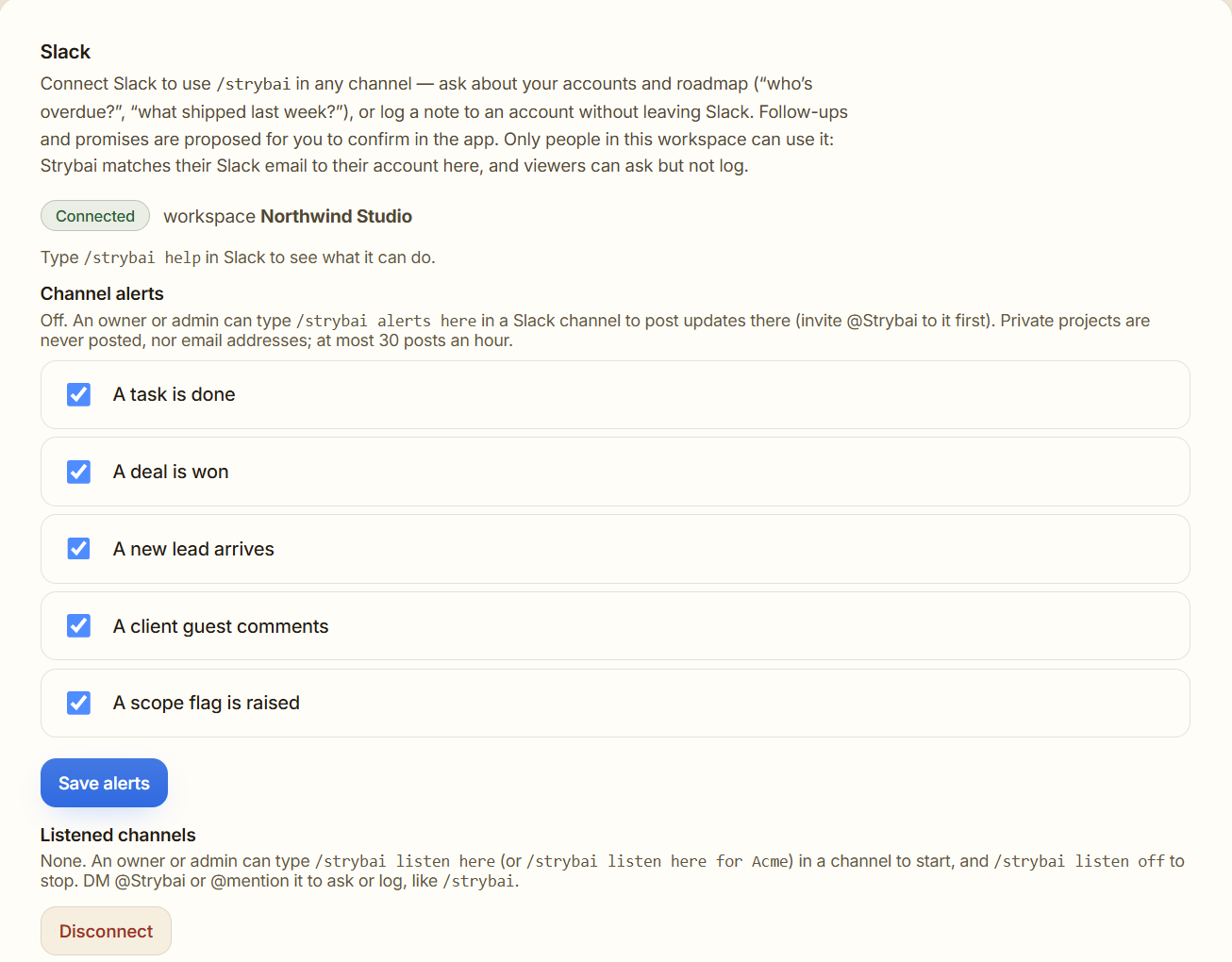
- In Strybai, open Settings → Integrations → Slack and click Connect.
- Pick your Slack workspace in the top-right corner of Slack's page and click Allow.
- Back in Strybai, the Slack card says Connected. You can choose which updates are posted as channel alerts.
Tip: if your company's Slack asks an administrator to approve new apps, ask them to approve Strybai once.
Before you start: use the same email
Strybai knows who you are by the email of your Slack account. It has to be the same email you sign in to Strybai with.
- Same email: Strybai answers you, with your role. Viewers can ask but not log.
- Different email: Strybai politely says you're not in the workspace. Change your email in Slack under Profile → ⋯ → Account settings, or ask to be invited to Slack with your Strybai email.
This keeps your client data safe: someone in the same Slack who isn't on your Strybai team can't read it.
Ask and log
Type these in any channel. Only you see Strybai's reply.
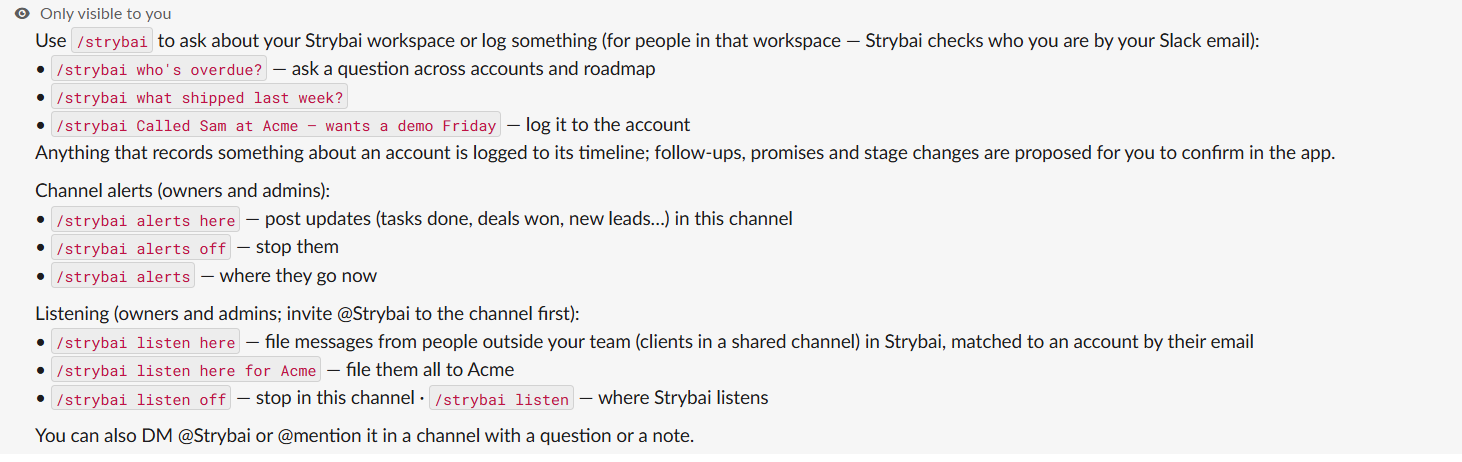
- `/strybai help` lists everything Strybai can do.
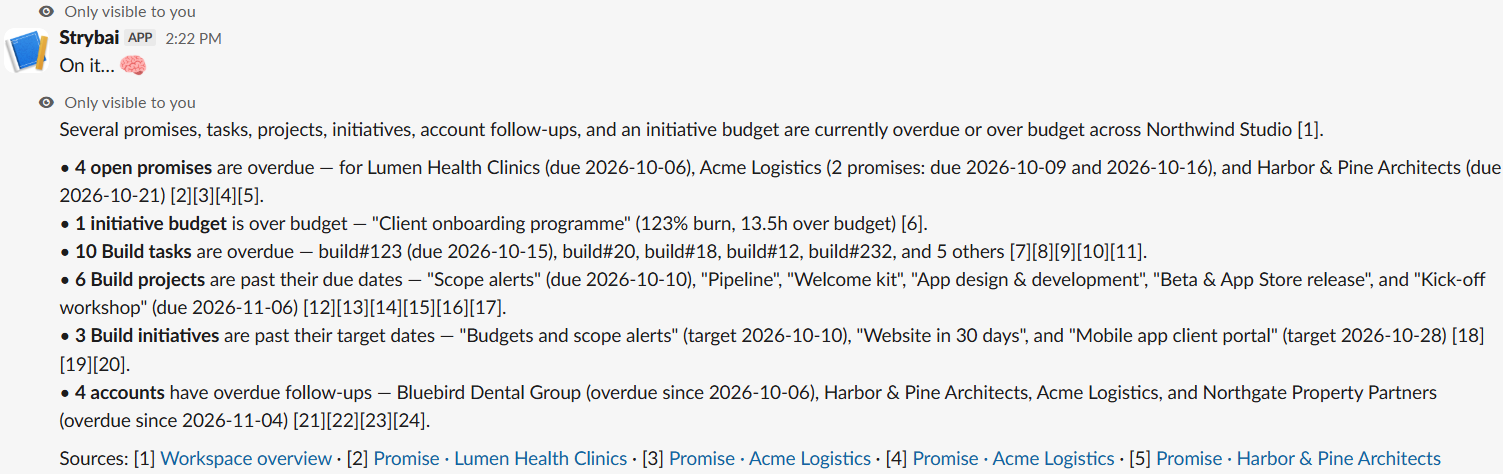
- `/strybai who's overdue?` shows late follow-ups, promises and tasks.
- `/strybai what shipped last week?`
- `/strybai which deals close this month?`
- `/strybai Called Sam at Acme, wants a demo Friday` logs it on Acme's timeline and suggests a follow-up for Friday.
Answers name the actual tasks, accounts and deals, with links to them in Strybai:
You can also open Strybai in Slack's sidebar and use its Messages tab, or write @Strybai in a channel, the same way.
Post team updates in a channel (owners and admins)
- In the channel, type `/invite @Strybai`.
- Type `/strybai alerts here`.
Strybai posts finished tasks, won deals and new leads there. Choose which updates in Settings → Integrations → Slack.
- `/strybai alerts` shows where alerts go now.
- `/strybai alerts off` stops them.
Private projects and email addresses are never posted, and there are at most 30 posts an hour.
File a client's messages automatically (owners and admins)
Use this in a channel you share with a client (Slack Connect) or a channel about one client.
- In the channel, type `/invite @Strybai`.
- Type `/strybai listen here for Acme` (with the account's name). Every message there is filed on Acme's timeline.
Or type `/strybai listen here` without a name: messages from people outside your team are filed on the account their email belongs to.
- `/strybai listen` shows the channels Strybai listens to.
- `/strybai listen off` stops listening in that channel.
Strybai only reads channels it was invited to and switched on in, plus messages sent to it directly. It never reads direct messages between people.
Tips
- Start your day with a question: "What needs attention today?" in Strybai's Messages tab.
- Log right after the call, while it's fresh. One sentence is enough.
- One alerts channel (for example #wins) keeps the team in the loop without noise.
- Stuck? `/strybai help` always works, even before anything is set up.