
Plan with AI: from a goal or a client request to a plan, and your North Star
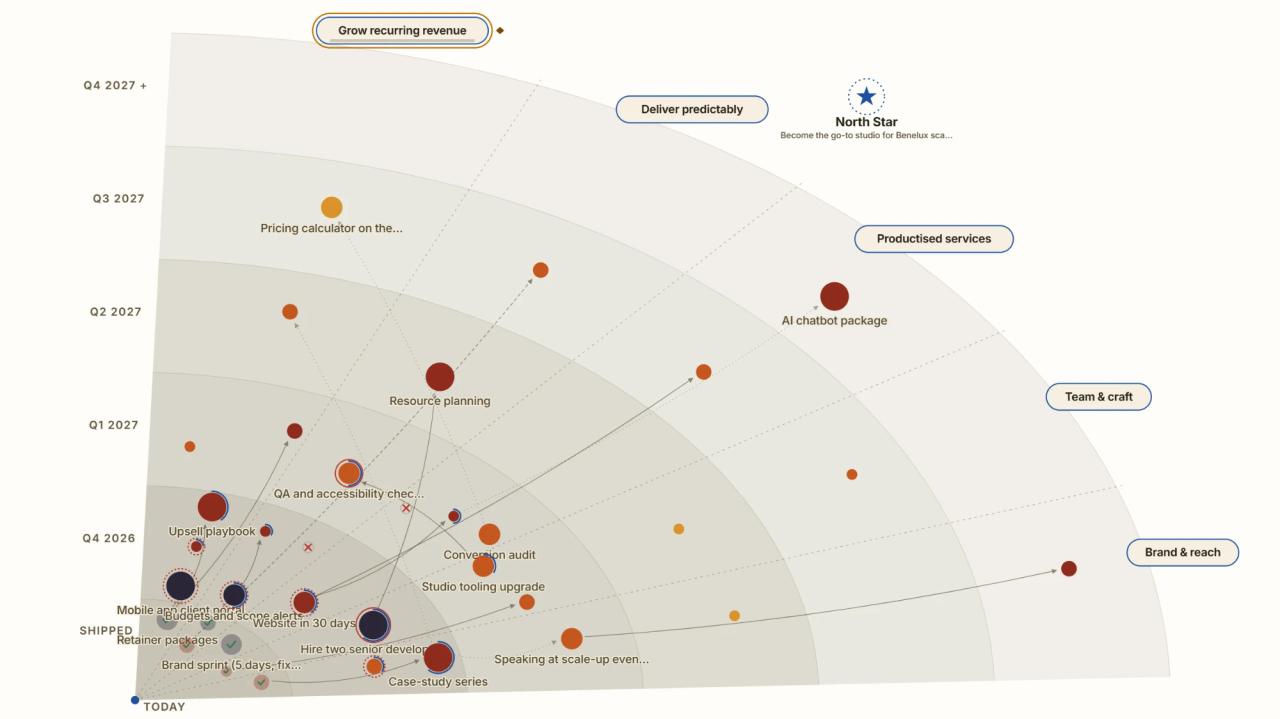
Planning usually starts in one of two places: a goal you want to reach, or a request a client just sent. Plan with AI in Strybai Build handles both. It drafts the work as pillars, initiatives, projects and tasks, each with an estimate. You check it before anything is saved, and the North Star page then shows the whole plan on one map.
Two ways to plan
- Top-down, from a goal. Describe the outcome ("Win three public-sector clients in Belgium by June") and Strybai drafts a complete plan for it.
- Bottom-up, from the work you already have. Ask for something that belongs to existing work, or start from a client's email, and Strybai adds only what's missing, in the right place.
Both start from the same button and follow the same rule: nothing is saved until you confirm.
Top-down: describe the outcome
- In Build, click + New → Plan with AI.
- Describe what you want to achieve, in your own words. Mention a deadline if there is one. You can also paste a client's request, or start from a template: Go-to-market, Product launch, Migration, Onboarding program or Hiring plan.
- Click ✨ Propose plan.
Strybai drafts a new pillar with up to four initiatives. Each initiative has its projects, and each project has its tasks with an estimate in working days (for example "· 2d"). It also proposes milestones, risks, decisions and key results for the pillar, and sets a target date when you named a deadline.
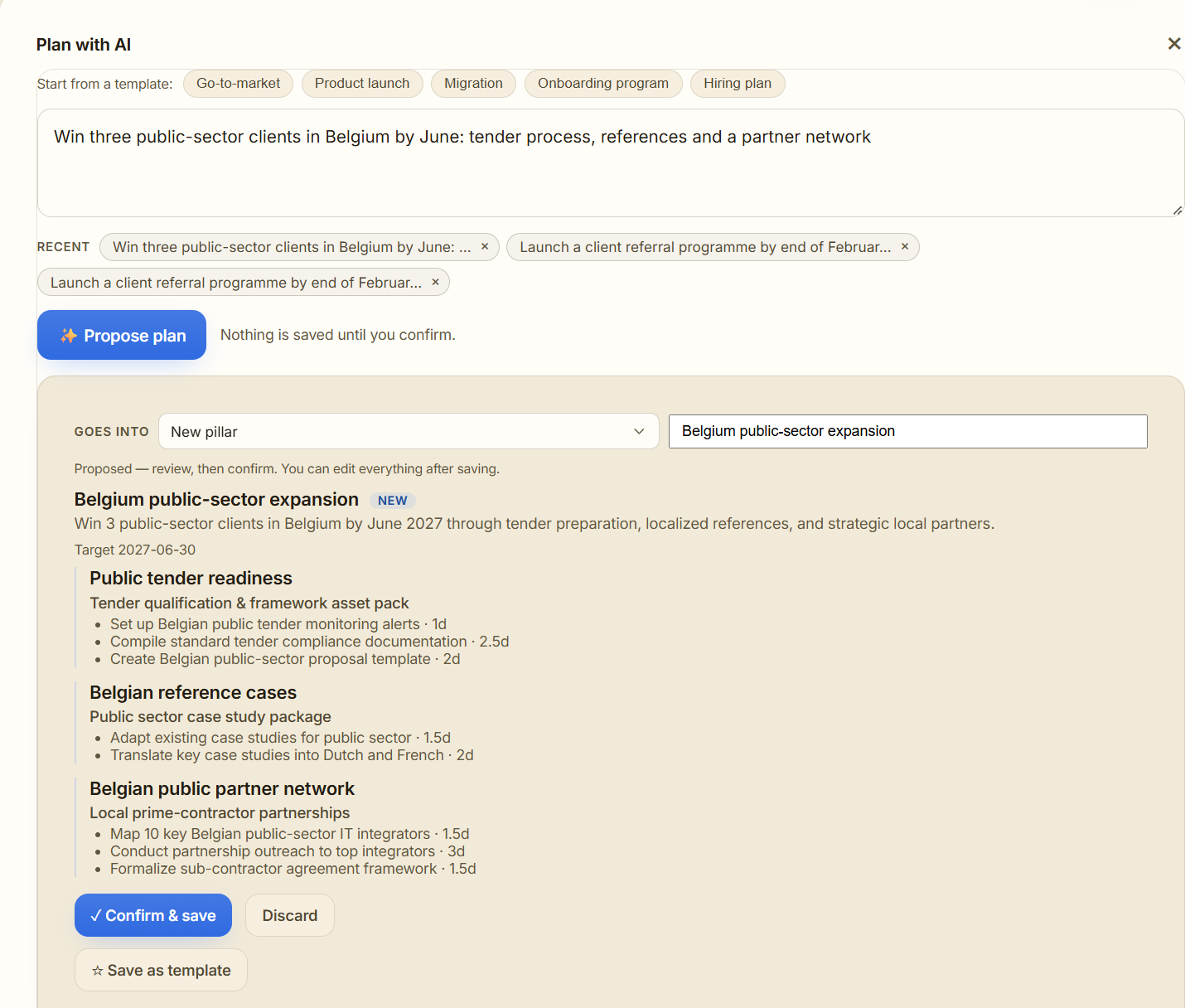
When you click ✓ Confirm & save, Strybai puts the work on the calendar for you. Each initiative starts today, its tasks follow one after another by their estimates, and project and initiative dates follow from the tasks.
Bottom-up: add to what's already there
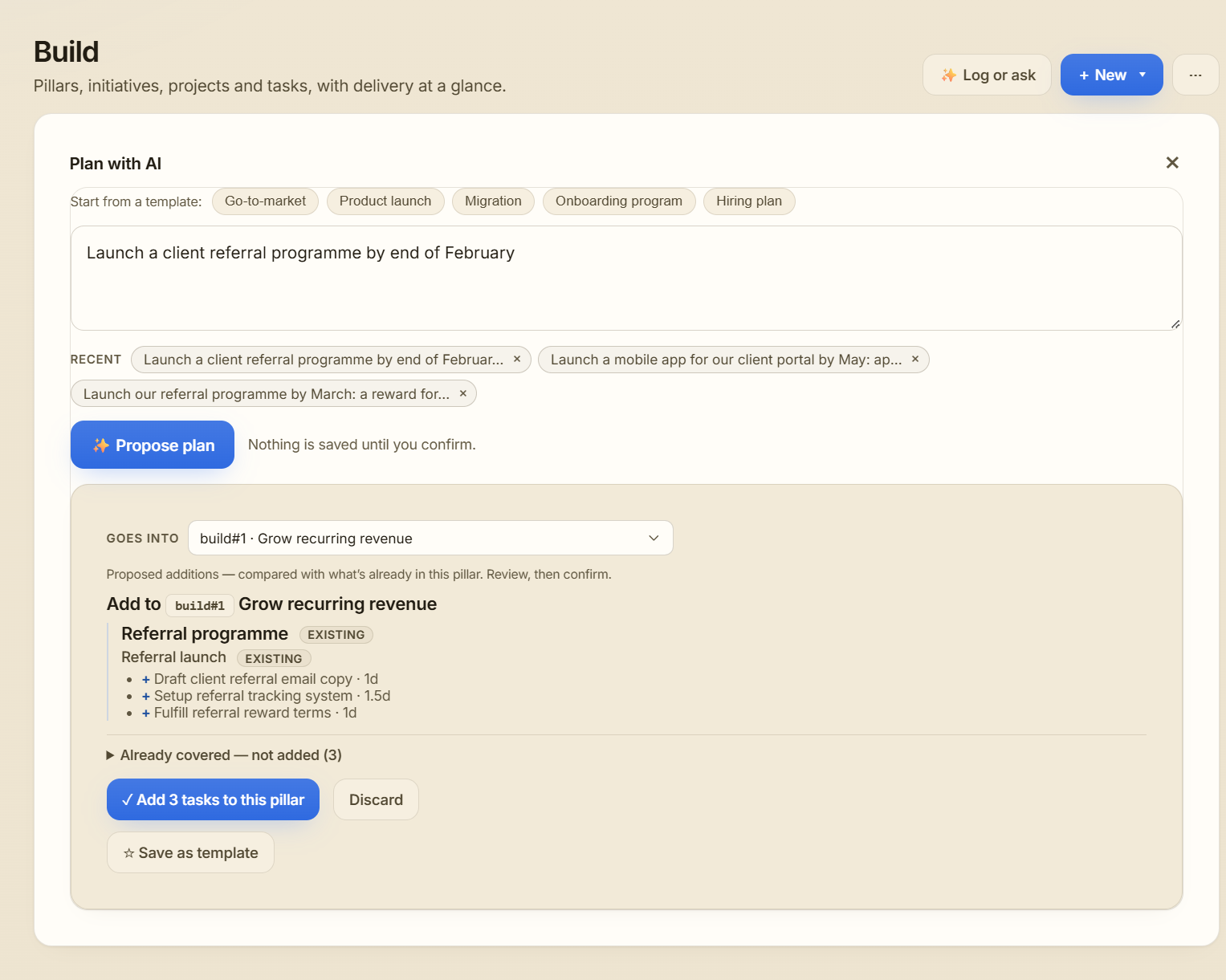
Strybai reads your current plan before it drafts anything. When your request belongs to an existing pillar, because you name it, say "add to" or it clearly fits, it switches to adding:
- Existing items are marked as such, and only the new tasks (with a +) are added, in the best existing project.
- Already covered — not added lists anything you asked for that your plan already has, so nothing is duplicated.
- The button says exactly what will happen, for example ✓ Add 3 tasks to this pillar.
From a client's email. On an email in an account's timeline or in the Inbox, click 🔎 Add to Build. Strybai compares the email with your open work and proposes either:
- updates to existing work, such as a status change, a note on the item, or a few new tasks, each with its own checkbox; or
- one new item, showing where it goes.
On an account, ✨ Draft a full plan instead turns the email into a complete plan, linked to that client.
Correct the plan, before and after saving
Before you save:
- Goes into chooses where the plan lands. Pick another pillar, or New pillar, and Strybai redrafts the plan for that place. When it's a new pillar, you can rename it right there.
- Not quite right? Change your description and click ✨ Propose plan again, or Discard.
- Planning the same kind of work often? Click ☆ Save as template.
After you save, everything can be edited like any other work in Build: titles, dates, owners, estimates and order.
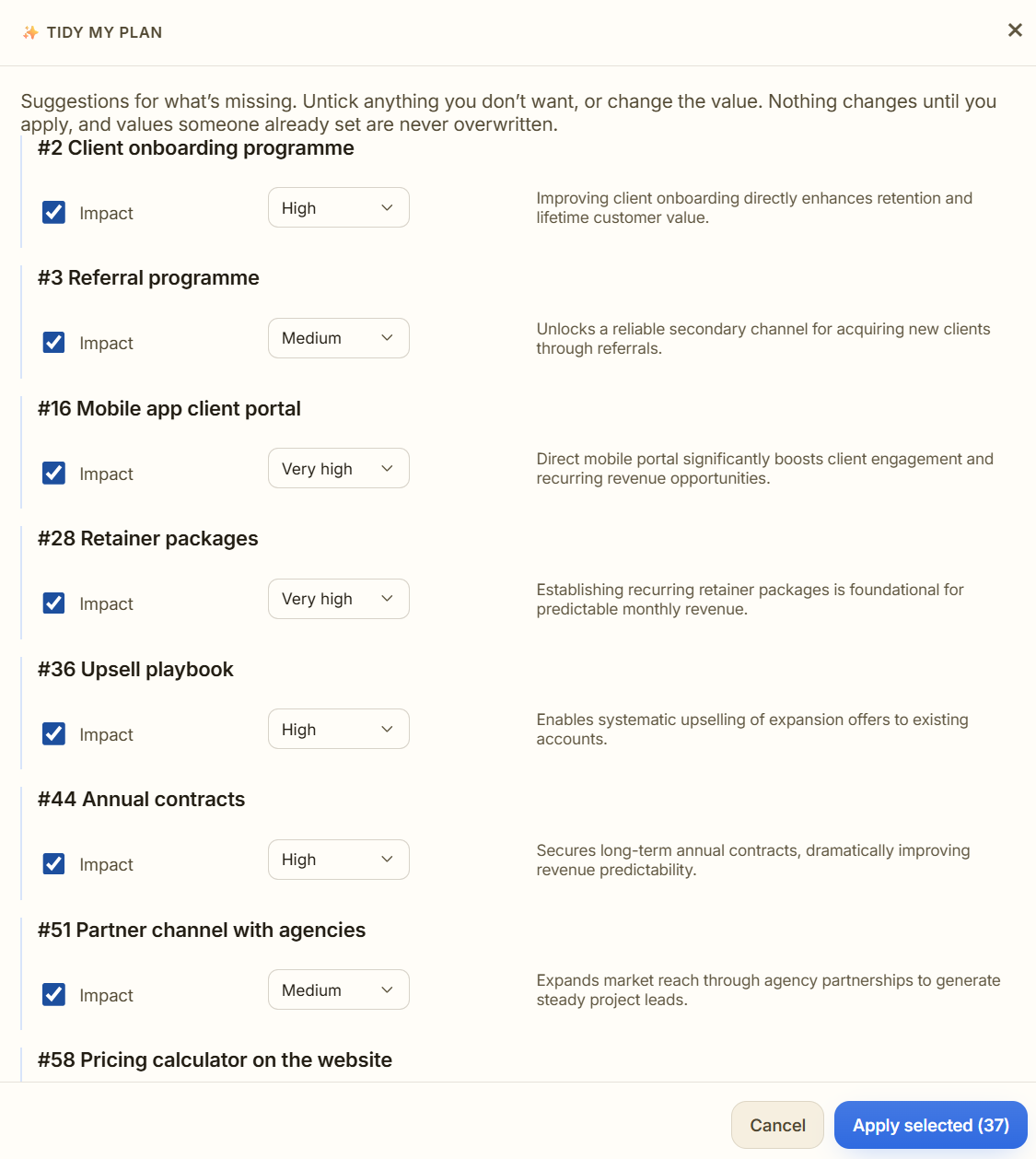
✨ Tidy my plan (in Build's ⋯ menu, and on the North Star page) finds what's missing. It looks for initiatives without a priority, target date or impact, and suggests a value for each, with a one-line reason. Untick what you don't want or change the value, then click Apply selected. Values someone already set are never overwritten. When a single pillar has grown too big, it can also suggest splitting it into a few, keeping every initiative with its projects and tasks.
The North Star page
Build → ★ North Star shows your whole plan on one map, aimed at your North Star: the one destination everything works towards.
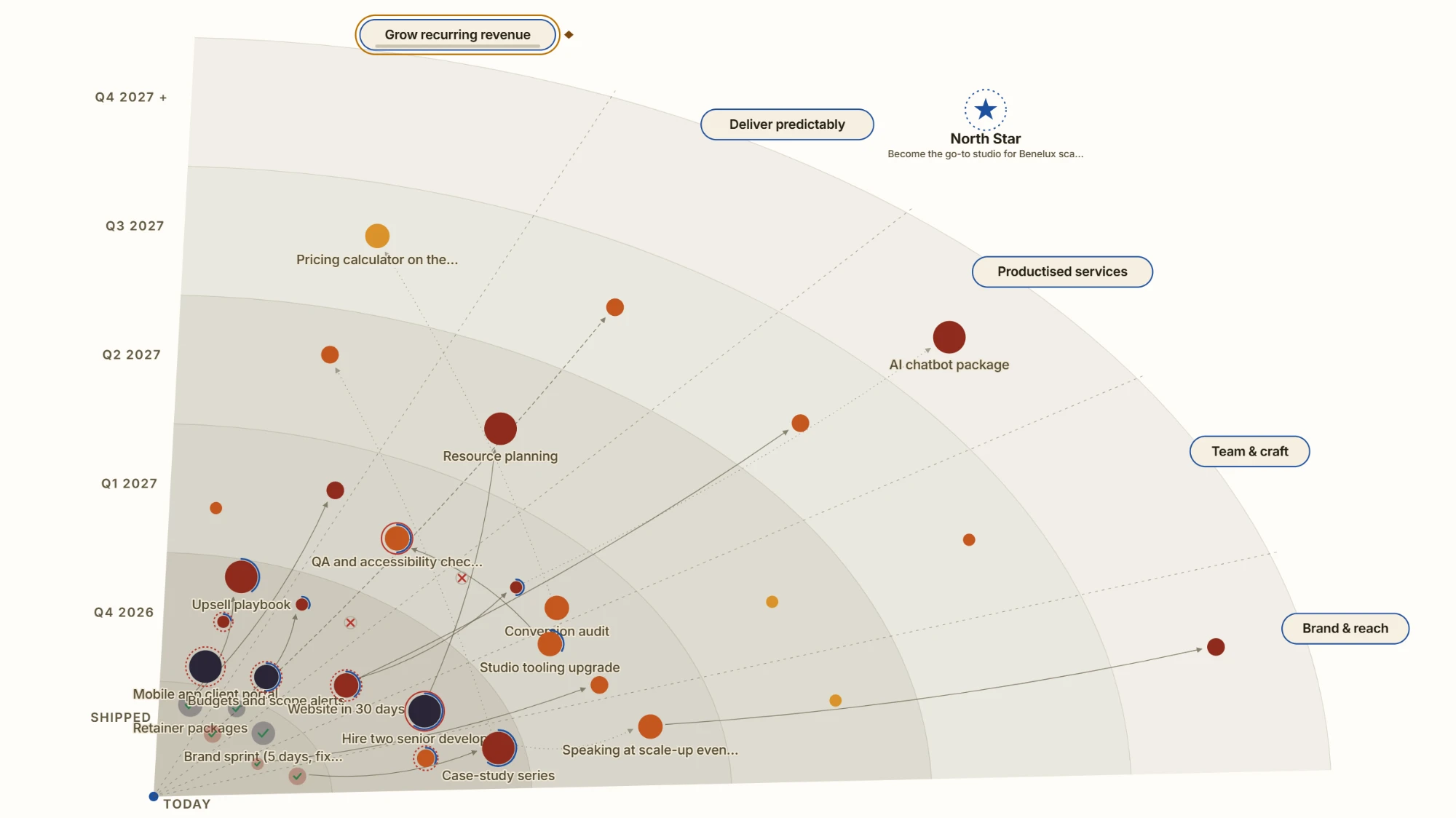
How to read it:
- Today is in the corner, and each ring is a quarter (or one of your own roadmap waves). The closest ring holds what has shipped.
- Each pillar is a wedge. Each initiative is a dot, placed by its target date.
- Colour shows priority and size shows impact.
- A progress arc runs around each dot. ✓ means shipped and ✕ means phased out. A ring around a dot means it's overdue or blocked.
- Arrows show what blocks or enables what. Hover over a dot to light up its whole chain.
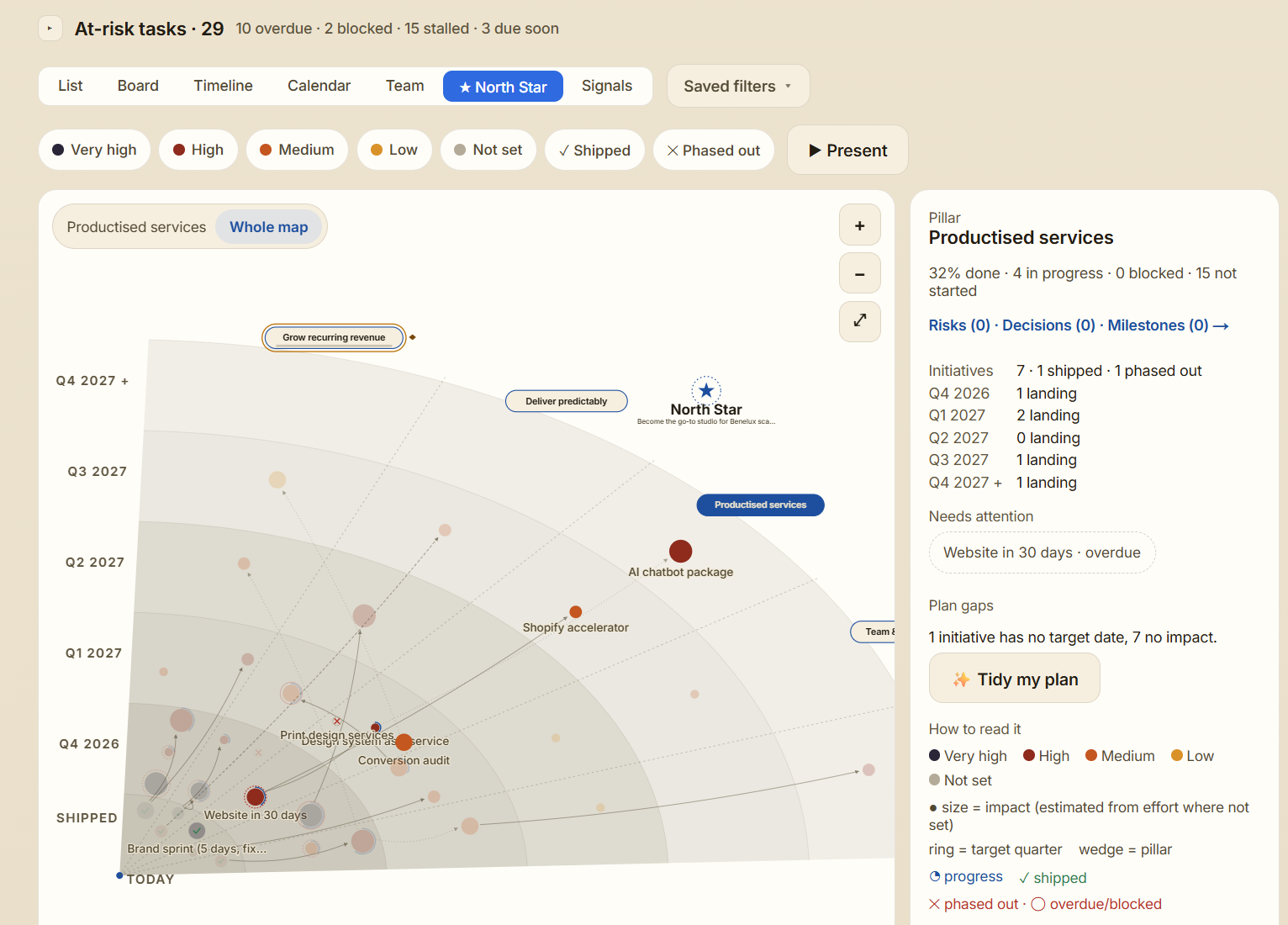
Click a pillar or an initiative to drill in. The side panel shows:
- Health: done, in progress, blocked, not started.
- Needs attention: what's overdue or blocked.
- Plan gaps: with ✨ Tidy my plan one click away.
- For an initiative: its projects, dependencies, open risks, next milestones and key results.
Use ▶ Present to walk a meeting through the plan pillar by pillar, and ✨ Ask AI for questions like "What's blocked, and what does it hold up?". Initiatives without a target date are listed under the map, so nothing hides. On a phone, the map becomes a simple list by ring.
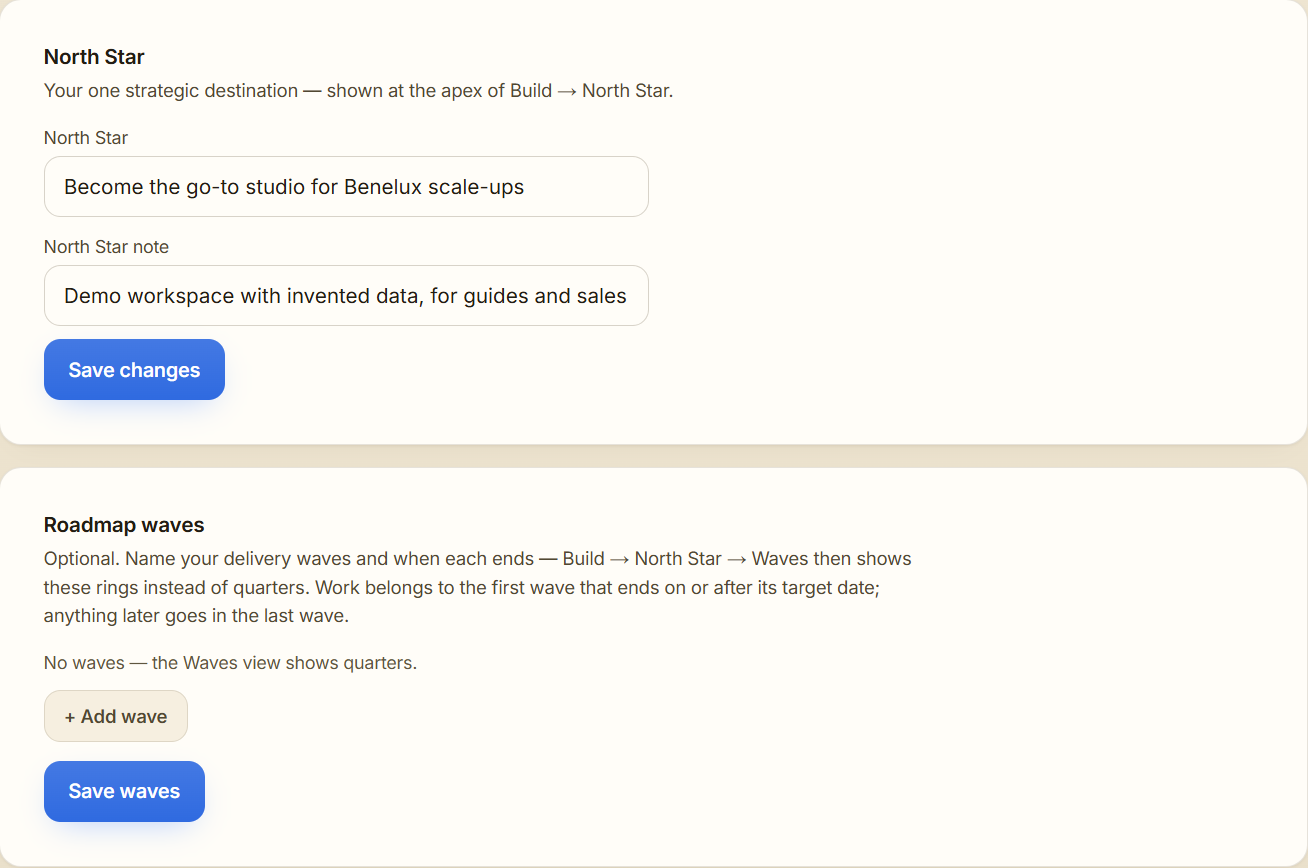
Set your North Star and waves
Owners and admins set both in Settings → Planning:
- North Star: your one strategic destination, shown at the top of the map, with an optional note.
- Roadmap waves: optional. Name your delivery waves and when each ends, and the map shows them instead of quarters. Work goes into the first wave that ends on or after its target date.
Good to know
- AI credits:
- Proposing a plan uses 2 credits, and so does each redraft for another pillar.
- Tidy my plan uses 2 credits, and none when nothing is missing.
- Add to Build on an email uses 1 credit.
- Who can do what:
- Members, admins and owners can plan with AI and tidy the plan. Viewers can look at everything but can't change it.
- Only owners and admins can change the North Star and the waves.
- Your decisions stay yours: every suggestion is a proposal. Nothing is saved or changed until you confirm, apply or add it.